Create an approval policy
This guide configures an approval policy step by step. For the concept behind it, read Approvals first.
Goal
Create a policy that requires sign-off on a record, with the tables it watches, the condition that fires it, the approval stages, and what happens to the record once a decision is made.
Prerequisites
- The
platform.approvals.writecapability. It gates the policy editor and the save action.
Steps
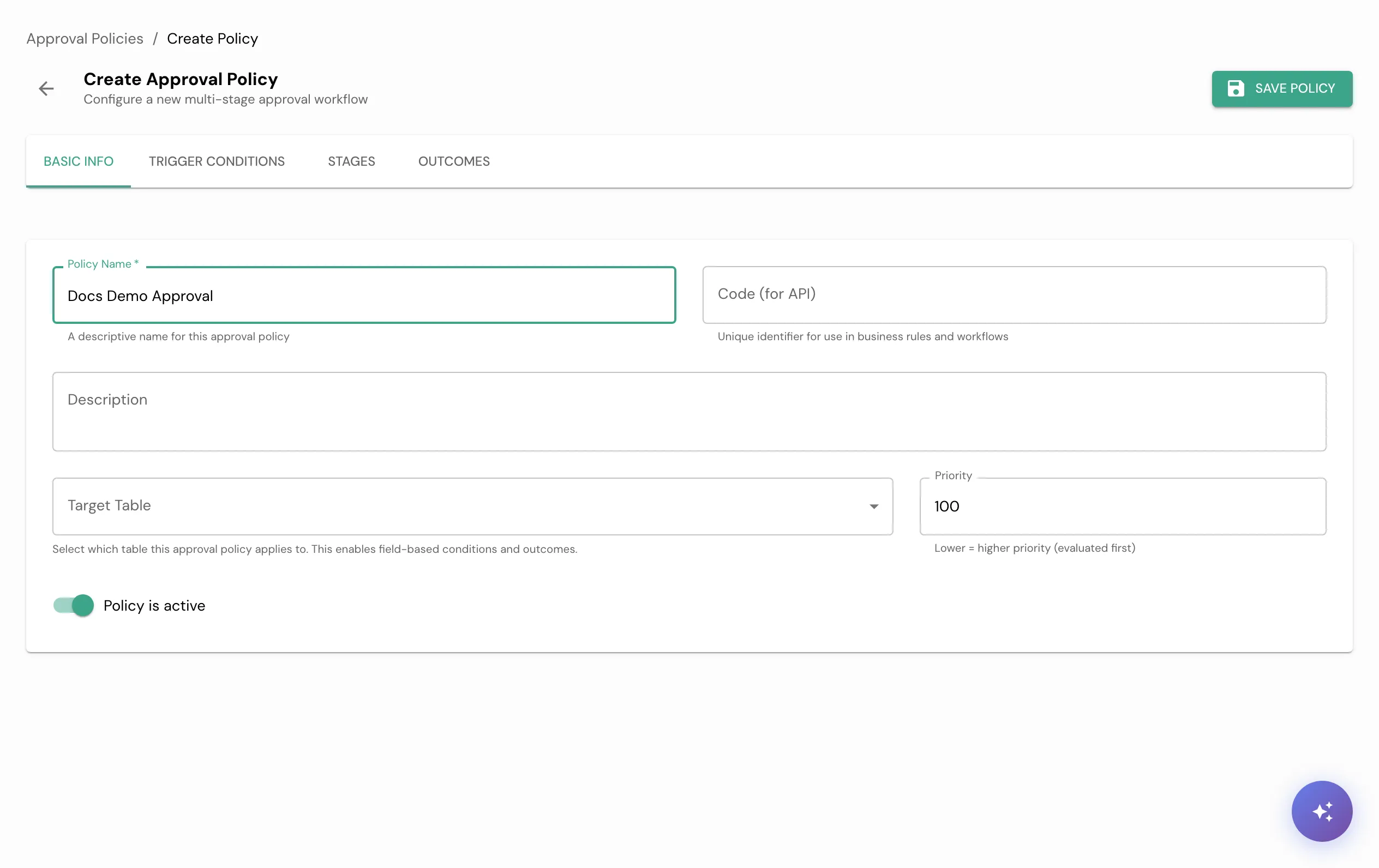
To open the editor, go to Admin → Automate → Approval Policies and click Create Policy. The editor has four tabs and a Save Policy button.
1. Set basic info
On Basic Info, give the policy a Policy Name and pick the target tables it governs. The target tables are the records whose creation or update the policy watches.
2. Set trigger conditions
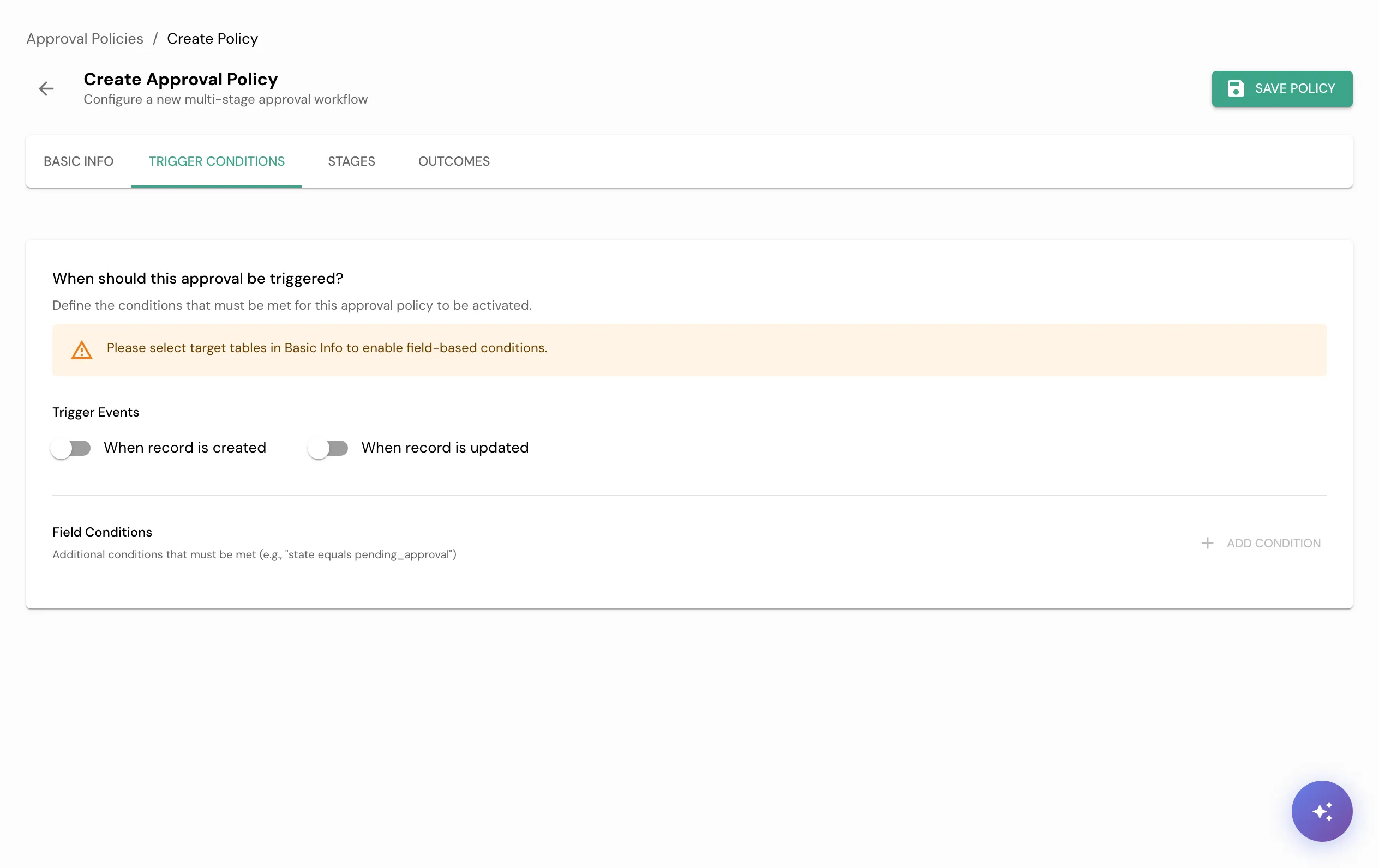
On Trigger Conditions, add the conditions that decide when the policy fires. With no conditions, the policy fires for every record on its target tables. Add a field condition (for example, request_type equals access) to scope it.
3. Add stages and approvers
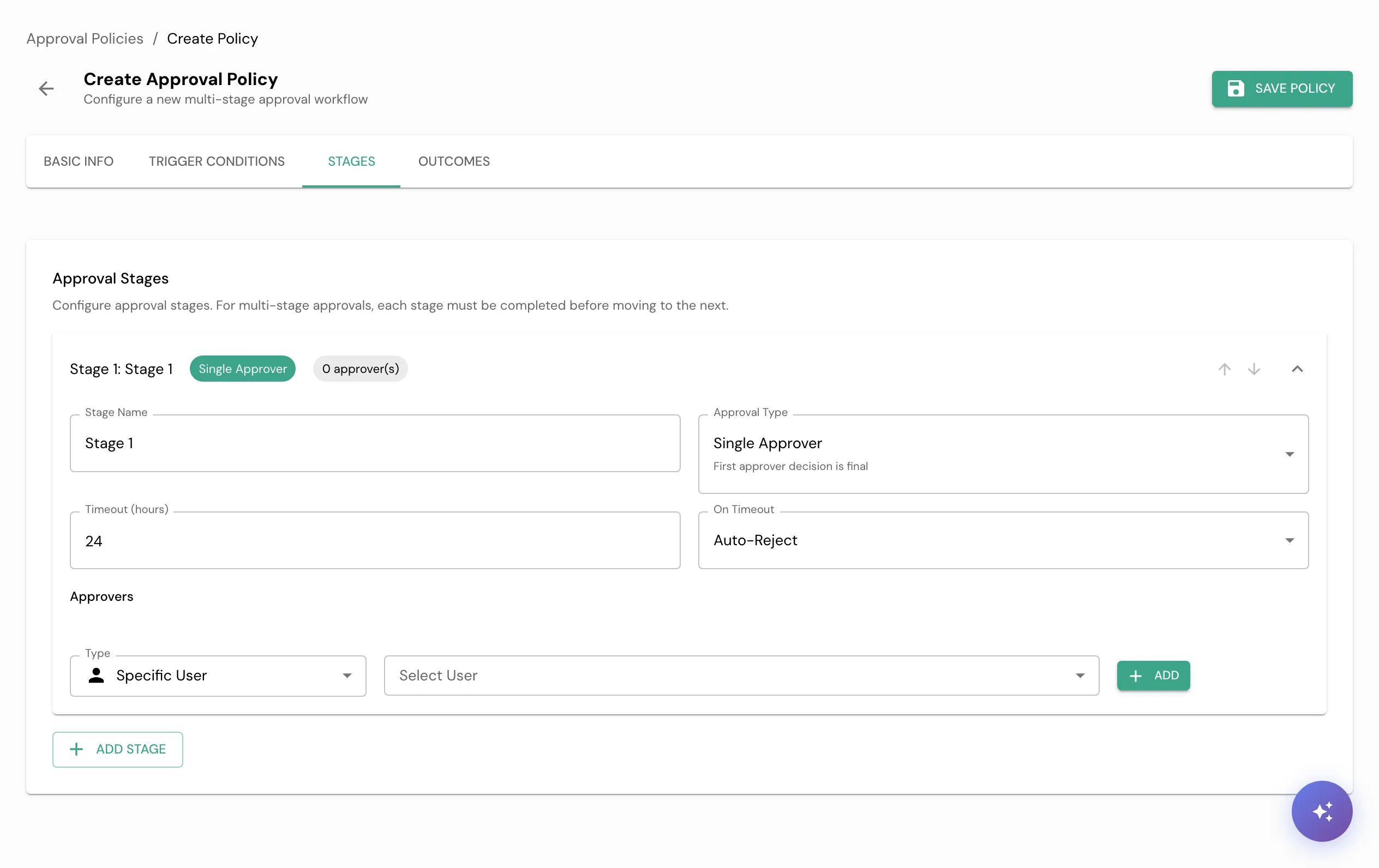
On Stages, configure who approves. Each stage has an Approval Type (a single approver, all approvers, or any one approver), a Timeout, and an Approvers list. Add an approver by Specific User, Group, Role, or a dynamic source. Add more stages for multi-step sign-off; each stage must complete before the next begins.
4. Set outcomes
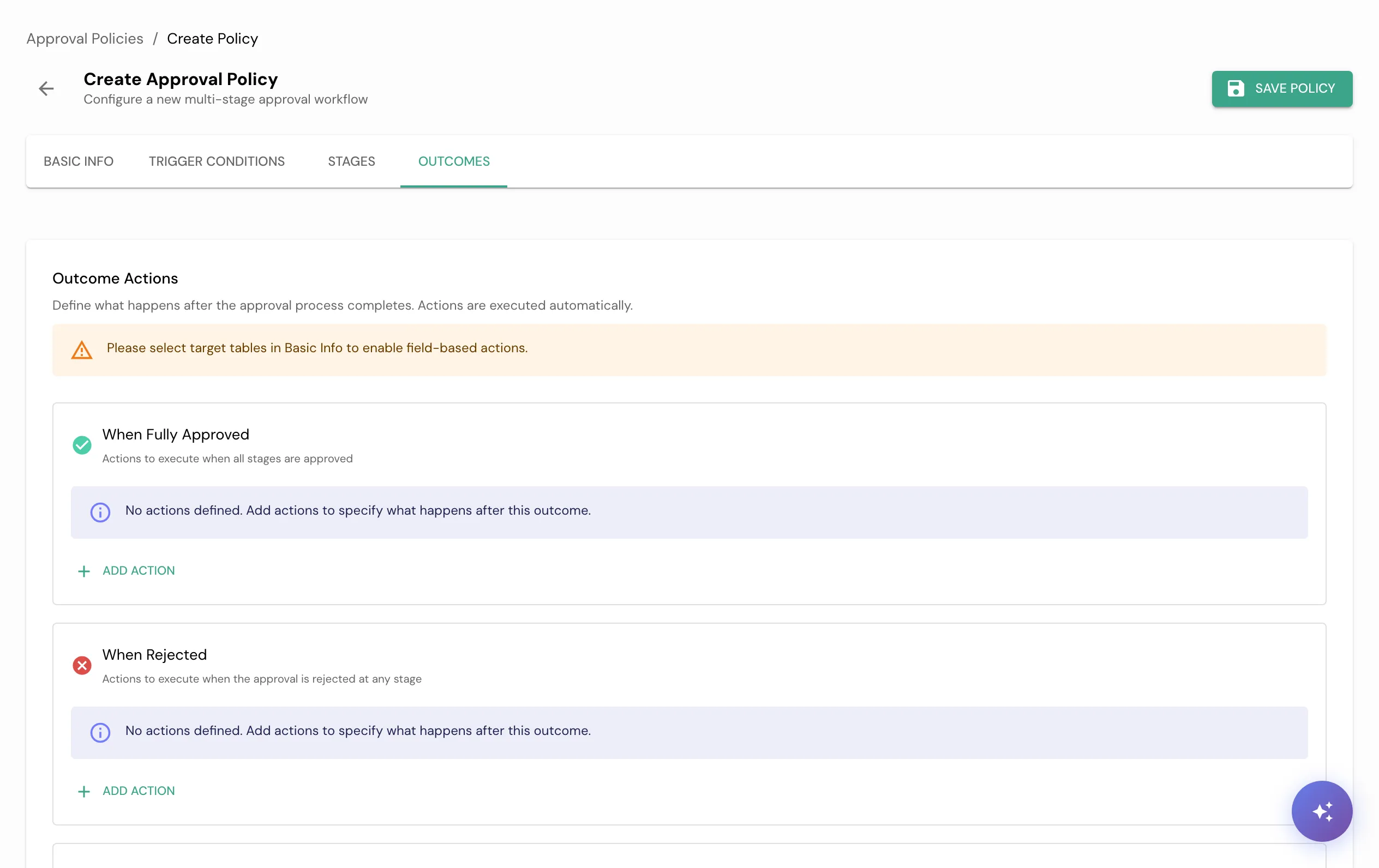
On Outcomes, choose what happens to the record when the policy resolves, such as the state it moves to once every stage approves or when it is rejected.
Click Save Policy.
Verification
You know it worked when:
- The policy appears in the Approval Policies list.
- Creating or updating a record on a target table that matches the conditions raises an approval for the configured approvers.
Troubleshooting
| Symptom | Cause | Fix |
|---|---|---|
| The policy never fires | No target table is set, or the trigger conditions do not match the record | Add the record’s table to target tables and check the field conditions |
| Everyone gets asked to approve | The policy has no trigger conditions, so it fires for every record on the table | Add a field condition to scope it to the right records |
| Approval never completes | The stage’s approval type expects more approvers than are configured | Set the approval type and approvers to match your sign-off rule |
Related
- Approvals: how a policy self-triggers and resolves.
- Create a catalog item: referencing a policy from a request.