Workflows
A Workflow runs a multi-step process for you when something sets it off. The trigger can be a record event, a schedule, a manual run, or a call from another workflow. Each step is one action, such as create a record, update a record, branch on a condition, loop over a list, call another workflow, run a script, or send an email. A run records what happened at each step so you can open it and see the outcome.
When you’d use it
- Orchestrate a process that spans steps and tables, such as open an incident, spawn sub-tasks, assign, notify, wait, then escalate.
- Run work on a schedule rather than in reaction to a single record change.
- Branch or loop when the path depends on the data, such as “for each affected asset, do X”.
- Preview a change safely with a dry run before you publish it.
The list
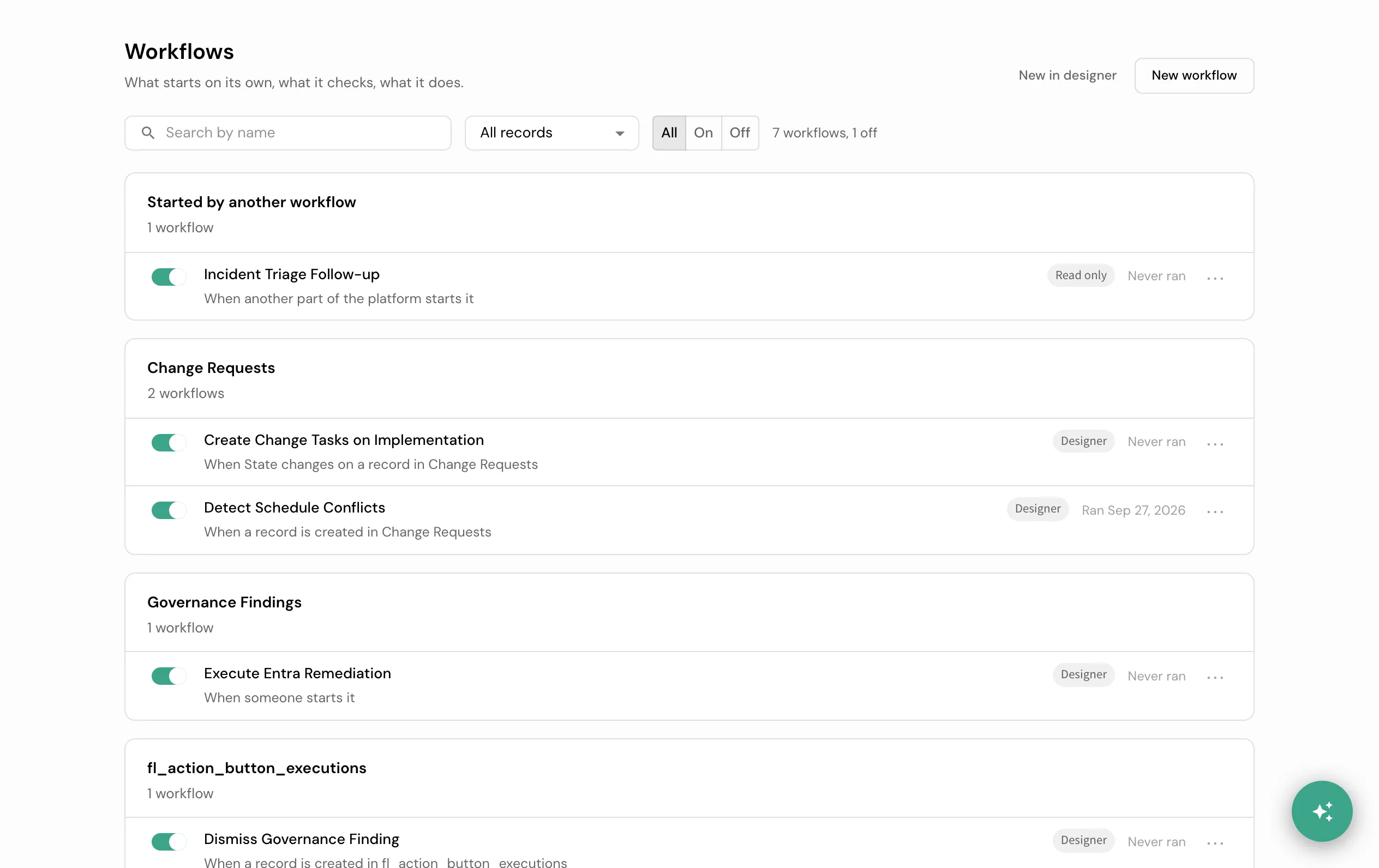
Workflows live under Automate → Workflows (/workflows), grouped by the record each one runs on. Each row shows the On switch, the name, the When sentence in plain English, a tag (Designer for a workflow this page cannot read whole, Read only, or Off), and when it last ran. The switch saves at once. “New workflow” opens the workflow page below; “New in designer” opens a blank canvas for a branch, a loop, parallel steps, a script, or an API call.
The workflow page
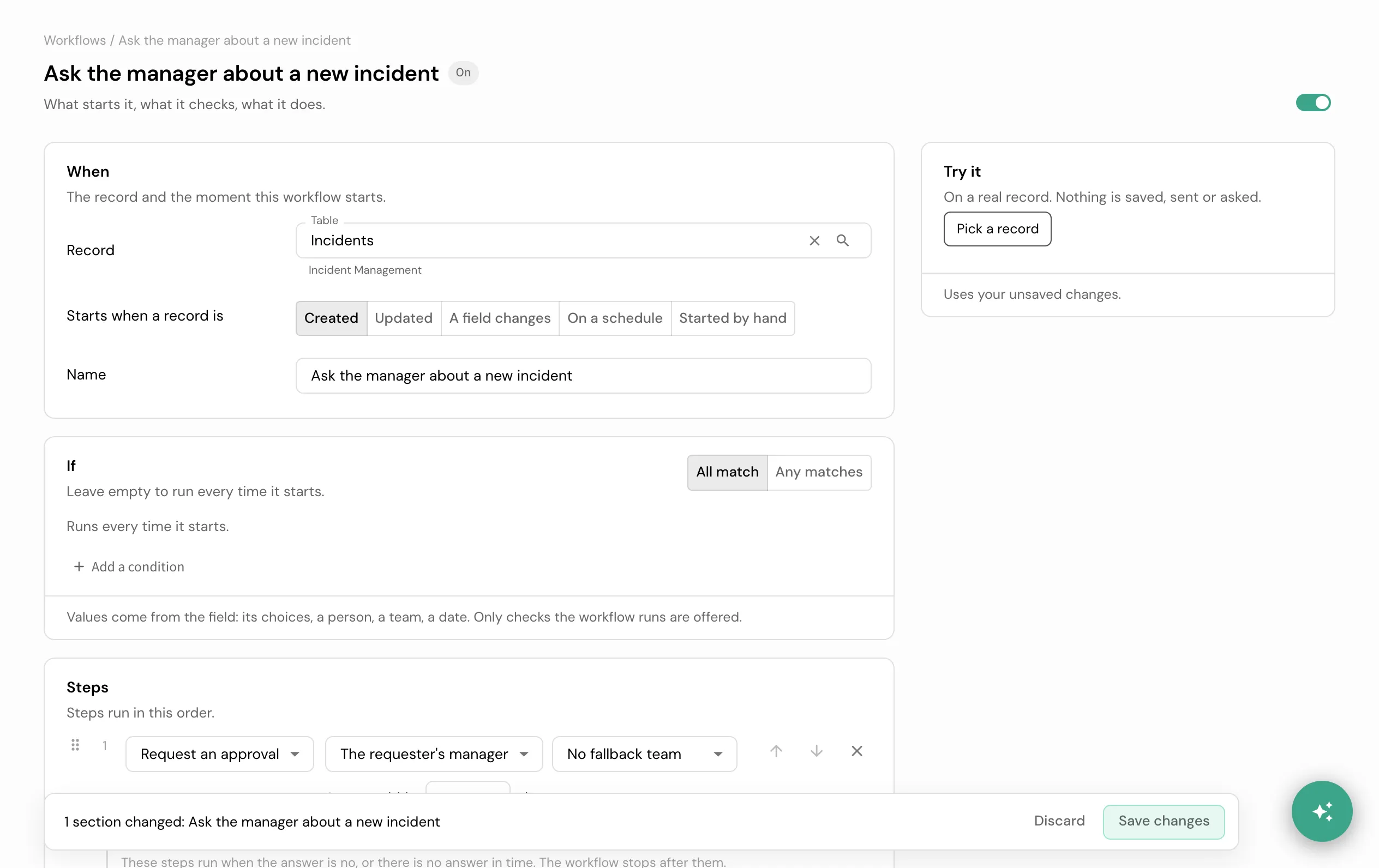
A workflow built from five step types opens on its own page, not the designer:
- When. The record and the moment it starts: created, updated, a field changes, on a schedule (once a day, with no record and so no If), or started by hand.
- If. The checks that must pass, built from the same fields and checks the record itself offers.
- Steps. In order: request an approval (the requester’s manager with a fallback team, a team, or a person; how many days to answer; what runs if the answer is no), create a task, notify the requester, the assignee, a team, or a person, update the record, or wait. A script step shows as a locked row, “Run the script X”: you can move it, but never type into it directly. “A script” in “Add a step” opens the script assistant instead: describe what the step should do, the draft is checked and shown as a change before you accept it, and “Use this draft” is what actually adds the step. A locked row offers “Open the script”, which opens that step on its own page (below). “Add a step” also names the kinds this page never builds, even through the assistant: a branch, a loop, parallel steps, and an API call, each one built in the designer instead.
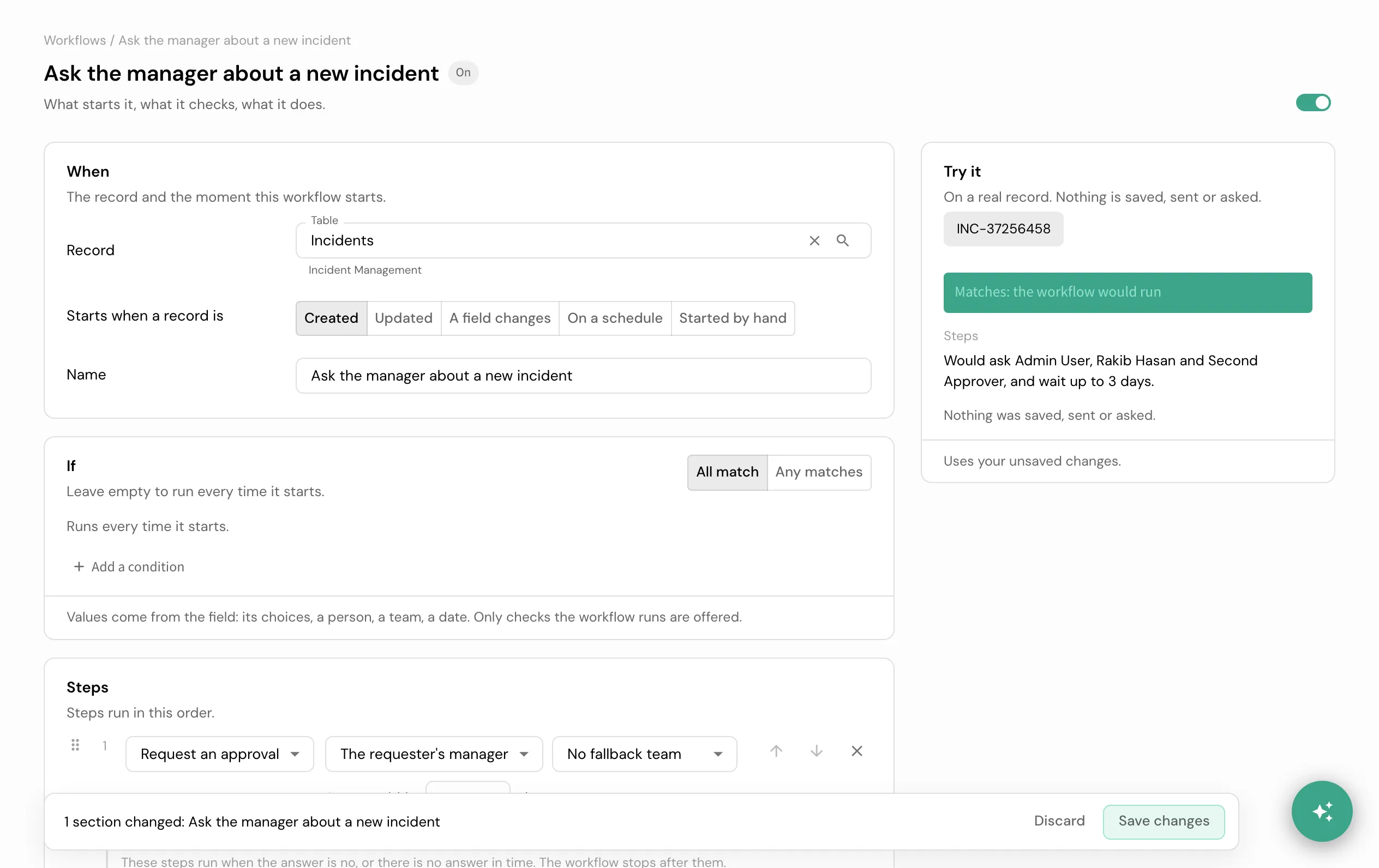
- Try it. Pick a real record and see each check against its value, whether the workflow would run, and the steps it would take with the people resolved, such as “Would ask Maya Chen and Leo Park’s manager, and wait up to 3 days.” Nothing is saved, sent, or asked. When a step would reach no one, Try it says so and stops there, as the real run would.
- Runs. The workflow’s last runs: waiting (which step, who holds it, how long), done, or stopped (the step it stopped at and why, such as “No one to notify: the record has no assignee.”). While a run waits, the record itself shows a band with the same facts.
A workflow with more than one trigger, or built from a branch, a loop, a parallel block, an API call, a script that is not a plain step in the list (one wired into a branch or a loop), or any other step the page does not read, opens read only: its steps show as plain sentences, and “Open in designer” is where you change them. Build, test, dry-run, or write a new script for a workflow with branches, loops, or scripts in the builder guides.
Opening a script step
“Open the script” on a locked row opens that step on its own page, built from the same parts as a business rule’s script page:
- The code. The step’s body, what it may read and the helpers it may call, and “Describe the change” to draft a new body with the same script assistant “A script” uses. The draft is checked and shown as a change before you use it, and saving the step page saves it through the workflow’s own save, so the same check runs.
- Try it on a record. Pick a real record of the workflow’s trigger table and run the step’s body alone, in the same sandboxed dry run the designer’s Test run uses. The steps before it are not run, nothing is saved or sent, and every notification, API call, or similar effect it would have made is named instead of happening.
- Runs. The step’s own recent runs: done, failed with the error, and when.
- Saves. This workflow’s saves: who, when, and whether the body was drafted with AI.
Good to know
- A dry run changes nothing outside the platform. Email, HTTP calls, waits, and agent dispatch are recorded instead of performed, so a preview is safe to run before you publish.
- Some operators are not available in an if/else branch and evaluate as false. Build branch conditions from the supported operators rather than assuming every operator exists.
- Script steps run in the platform’s script sandbox with the same helper set as every other script surface, so a script cannot reach unsafe operations.
Business Rule vs Workflow
If you are choosing between the two, see the comparison table on Business rules. In short: a Business Rule reacts to one record event with one action, a Workflow runs a whole multi-step process, and a rule can start a workflow.
How it connects
A Workflow orchestrates; it does not react to a record event on its own (that is a Business Rule), and it does not own how fields split across inherited tables (that is Tables and records).
- Build, test, and dry-run a workflow in the builder guides.
- Exact shapes: the tables
workflows,workflow_actions, andworkflow_executions; action types and every term in the glossary.