Create a catalog item
This guide builds a catalog item on its page. For the concept behind it, read Service Hub first.
Goal
Publish a catalog item that people can request from the portal: what they answer, what every request gets, who approves it and who does the work.
Prerequisites
- Write access to catalog items, their questions and approval policies (the Service Hub admin role has it).
Steps
1. Open the catalog items tab
Go to Admin → Service Delivery → Service Hub Admin. The Catalog items tab lists your items under their categories, the way the portal shows them. Each row says who approves, how many questions it asks and which app its requests land in. Search, or filter to the items shown on the portal or the drafts. The row menu shows an item on the portal or makes it a draft.
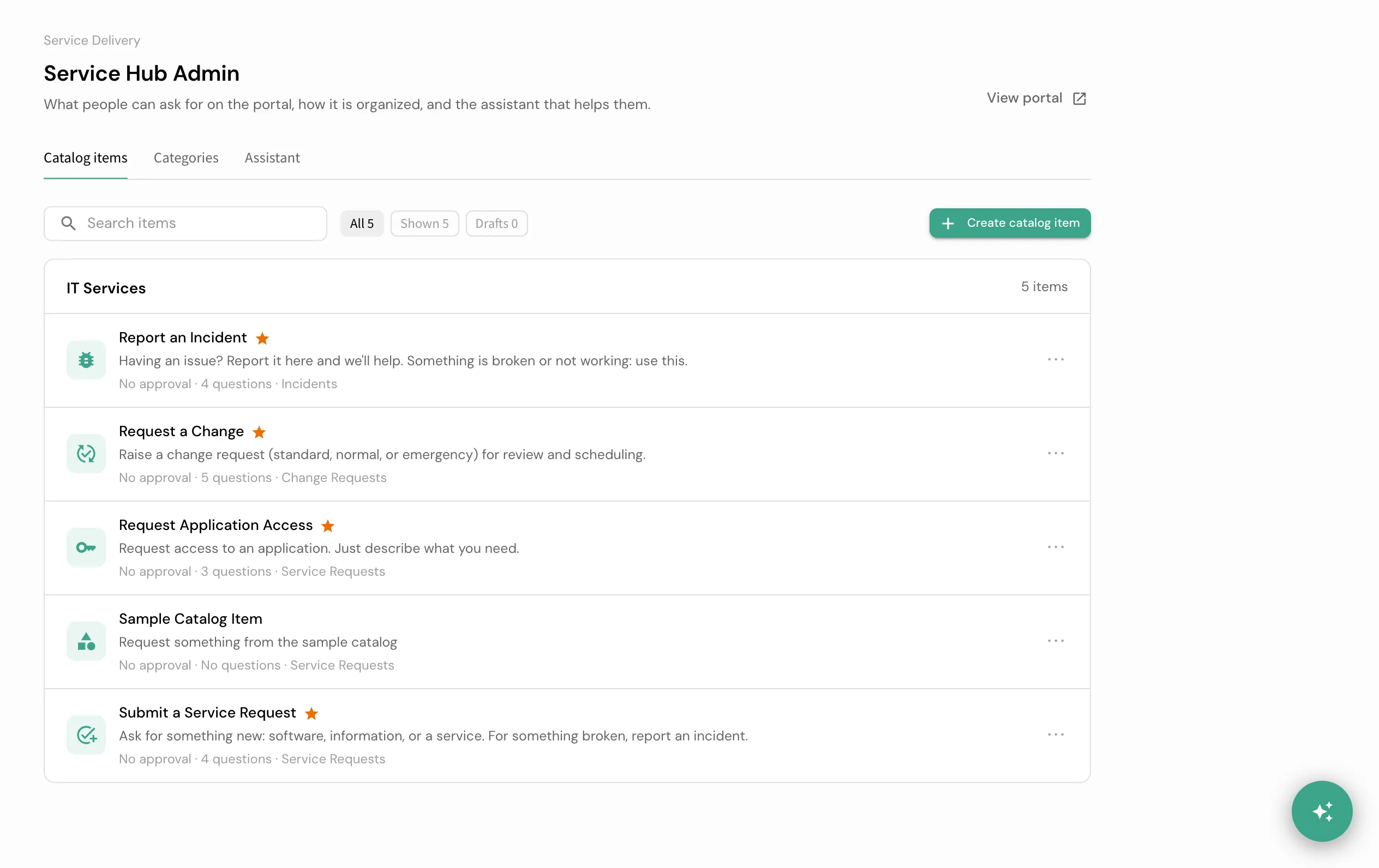
Click Create catalog item, or click an item to change it. The item opens on one page, with a live portal preview on the right. Nothing is saved until you click Save changes.
2. Fill in the basics
Under Basics, type a Name and One line for the portal, and pick a Category. If the right one does not exist, pick New category… at the end of the list, give it a name and create it; the item uses it straight away. Shown on the portal off keeps the item as a draft. Creates a record in says which app’s records a request becomes.
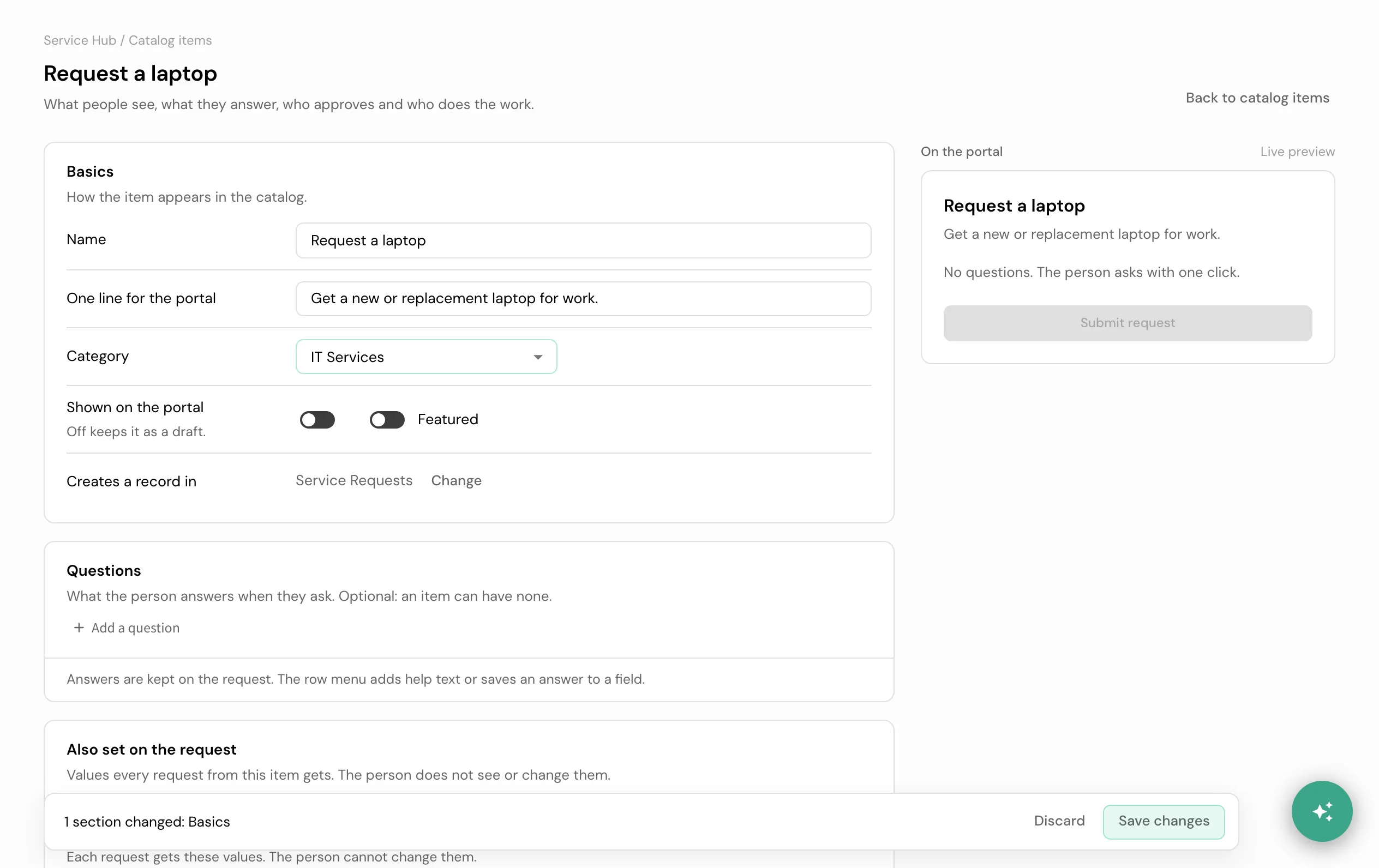
You should see the name in the preview on the right as you type.
3. Add the questions
Under Questions, click Add a question, type what you want to ask and pick the kind of answer:
- Choice, Several choices or One of a few: type each choice and press Enter. A choice saved to a field that has its own list uses that list.
- Pick a record: choose what to pick from (a person, a service, a category) and how a record is shown.
- Text, a number, a date, an email, or Yes or no.
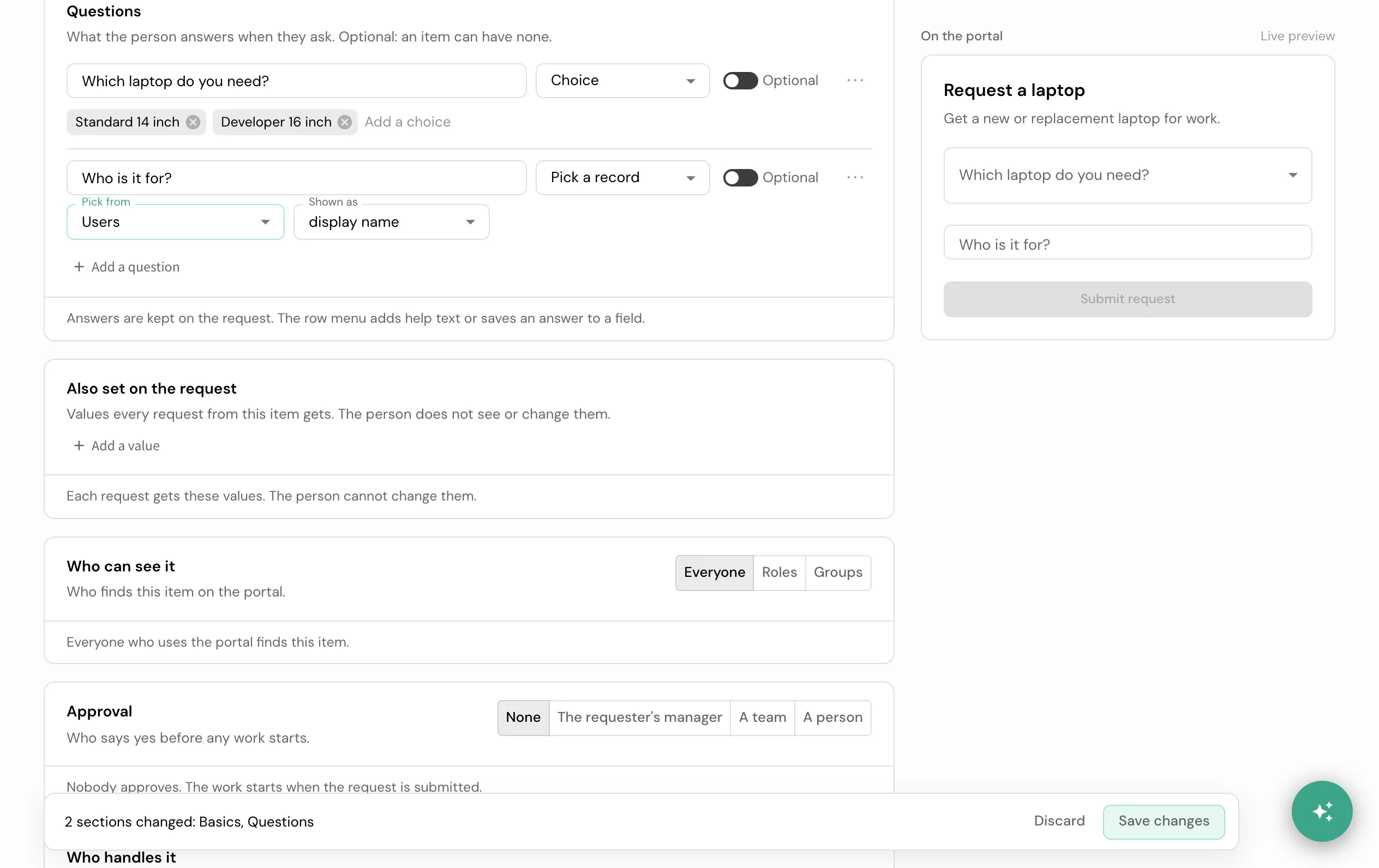
An answer is kept on the request. To save it to one of the request’s fields instead, open the row menu and choose Save the answer to a field. An item can have no questions: the person then asks with one click.
To show a question only for some answers, calculate a value, or filter what a picker offers, save the item first and click Open the form editor under the questions. The form editor opens the item’s own form and brings you back to the item when you leave it. After that, the page shows those questions read only.
4. Set values on the request
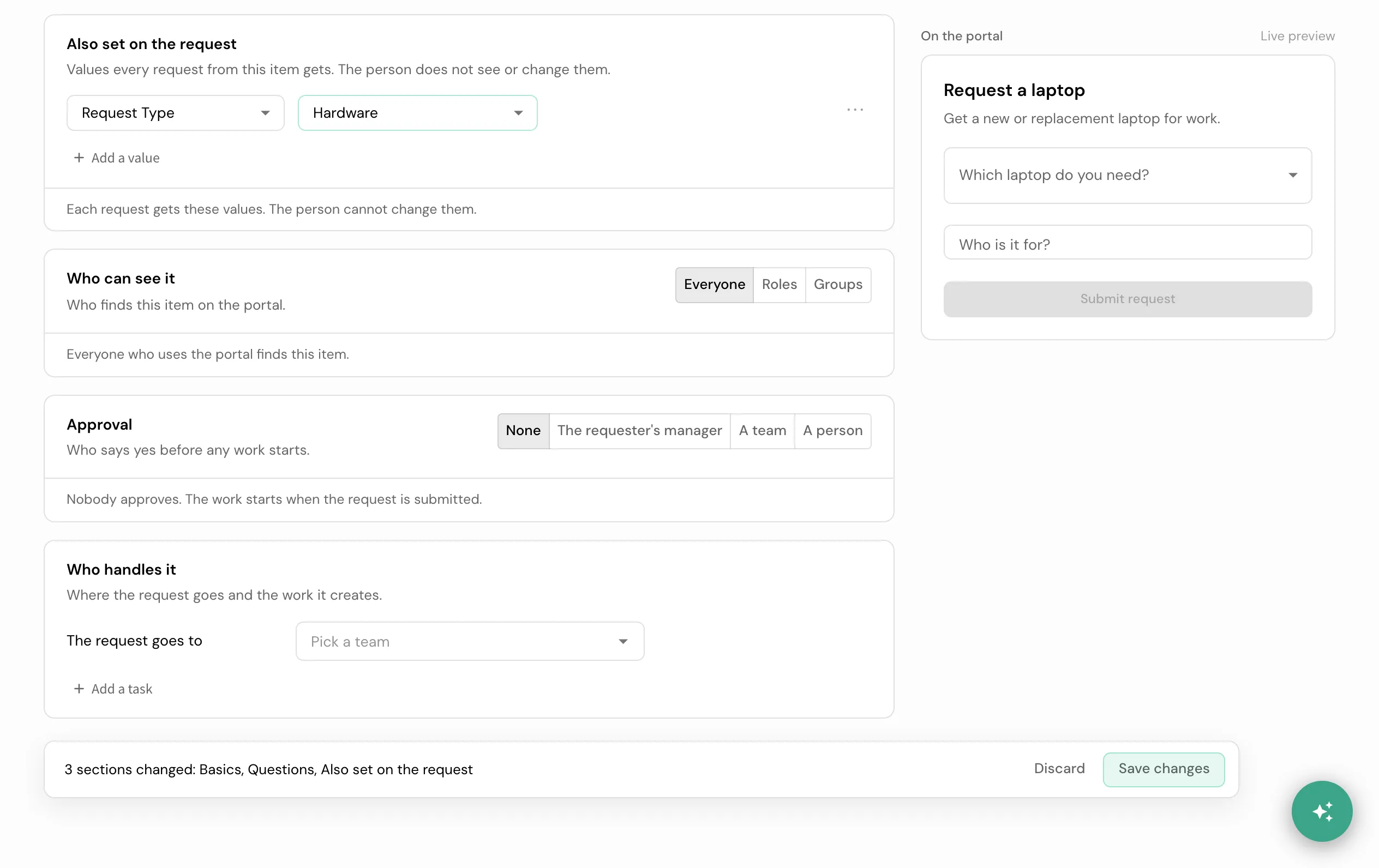
Under Also set on the request, click Add a value and pick a field and its value: one of its choices, a record, or for a person field The requester. Every request from this item gets these values, and the person cannot see or change them.
5. Choose who sees it and who approves it
Under Who can see it, keep Everyone or pick roles or groups. Under Approval, choose None, The requester’s manager, A team or A person. For the manager, pick the team that decides when someone has no manager on record: someone always decides.
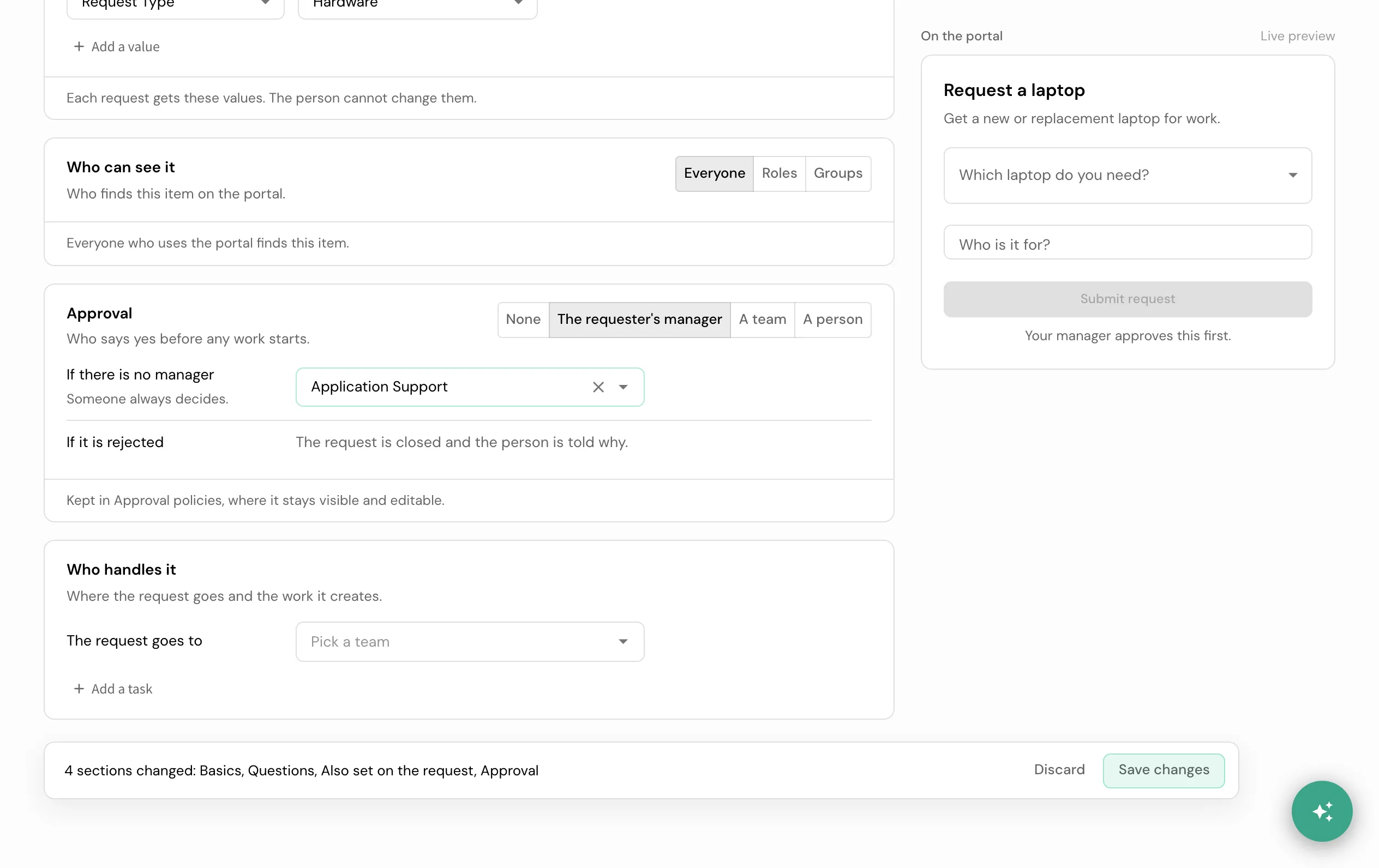
The approval is kept as the item’s policy in Approval policies. A policy changed there beyond what this page can say shows as Custom, with a link to open it.
6. Choose who handles it and save
Under Who handles it, pick the team The request goes to and add the tasks the request creates, each with its team. Tasks are created together: on submit with no approval, or once the request is approved.
Click Save changes. If a setting cannot be saved, the save bar says so and the reason shows on its row.
Verification
You know it worked when:
- The item appears in the Catalog items tab.
- If you set it shown, it appears on the portal under its category, with the questions the preview showed.
- Submitting it creates a request with the values you set, and the approval you chose asks the right person.
Troubleshooting
| Symptom | Cause | Fix |
|---|---|---|
| Save changes stays disabled | A required setting is empty: a name, a category, a question without text, a choice question without choices | Fill in the marked row |
| A row says “Pick at least one” under Who can see it | Roles or groups is chosen with none picked; nobody would see the item | Pick a role or group, or choose Everyone |
| Questions show Open the form editor instead of rows | The item’s form uses rules or computed fields the page cannot edit | Change them in the form editor; the page keeps them as they are |
| Open the form editor under the questions is greyed out | The page has unsaved changes | Save or discard them first, then open the form editor |
| A submission is refused with “These fields are not questions on this item” | Something posted a field that is not one of the item’s questions | Answer only the questions; set fixed values under Also set on the request |
Related
- Service Hub: catalog, offerings, routing, and fulfillment.
- Approvals: the policy the page writes for the item.
- Design an agent: the other end-to-end builder guide.